> ## Documentation Index
> Fetch the complete documentation index at: https://help.leaf360.com/llms.txt
> Use this file to discover all available pages before exploring further.

# Connecting Arive

> A step by step walkthrough, with screenshots, of connecting your Arive account to Leaf360 from Account Settings.

This walks you through connecting **Arive** to Leaf360, screen by screen, so your Arive loans start importing. If you'd rather watch it, the video covers the same ground.

<iframe width="100%" height="400" src="https://www.youtube.com/embed/hHLD3bMfREs" title="How To Connect Arive To Leaf360" frameborder="0" allow="accelerometer; autoplay; clipboard-write; encrypted-media; gyroscope; picture-in-picture; web-share" allowfullscreen />

For what data moves across once you're connected, the status mapping tabs, and the rest of the reference, see [Arive](/integrations/arive).

## Connecting Arive

<Steps>
  <Step title="Open Account Settings">
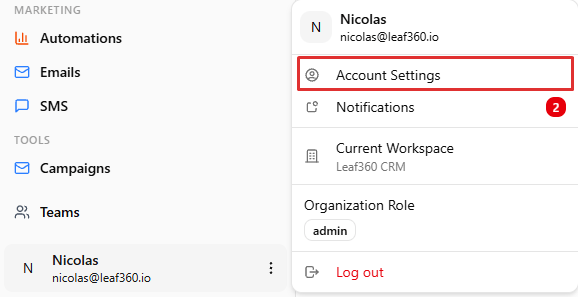
    Click your profile at the bottom left of your screen, then **Account Settings**.

    <Frame caption="The profile menu at the bottom left, with Account Settings at the top">
      <img src="https://mintcdn.com/leaf360/S0n2YT9I9PoinM_X/integrations/images/arive-01-account-settings.png?fit=max&auto=format&n=S0n2YT9I9PoinM_X&q=85&s=2e1ad814c6fb2ad1f85bbe953b5a7e88" width="578" height="297" data-path="integrations/images/arive-01-account-settings.png" />
    </Frame>
  </Step>

  <Step title="Go to Integrations">
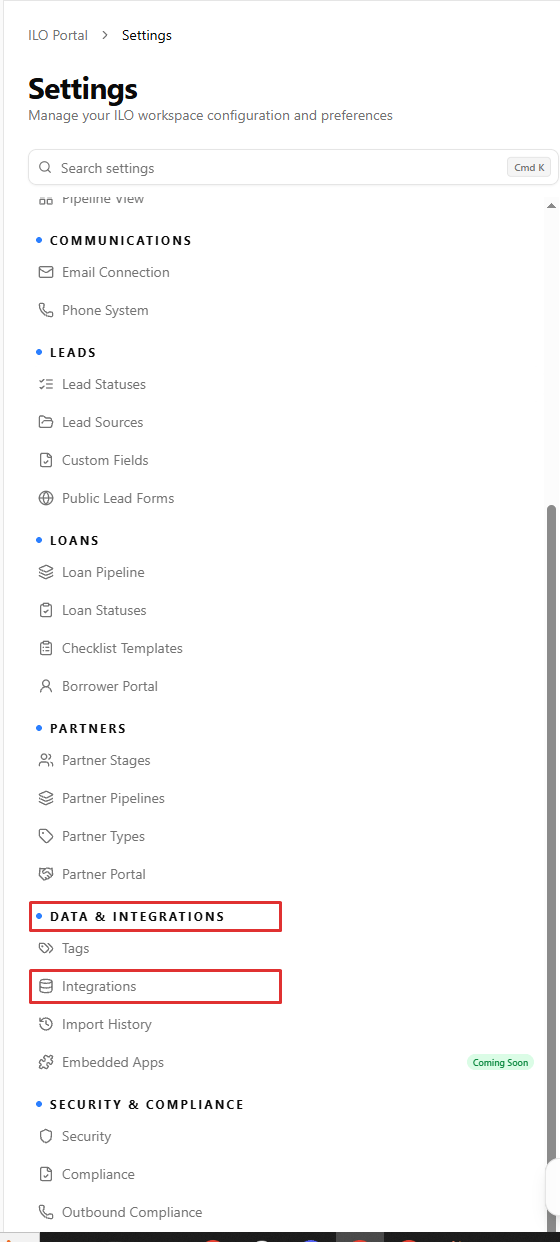
    In the settings list, scroll down to **Data & Integrations** and select **Integrations**.

    <Frame caption="Data & Integrations in the settings sidebar, with Integrations selected">
      <img src="https://mintcdn.com/leaf360/S0n2YT9I9PoinM_X/integrations/images/arive-02-data-integrations.png?fit=max&auto=format&n=S0n2YT9I9PoinM_X&q=85&s=d267ff0776a9cda3c9790925be93478e" width="560" height="1242" data-path="integrations/images/arive-02-data-integrations.png" />
    </Frame>
  </Step>

  <Step title="Select Arive">
    Look through the integrations and select **Arive**.

    <Frame caption="The Arive card on the Core Integrations shelf">
      <img src="https://mintcdn.com/leaf360/S0n2YT9I9PoinM_X/integrations/images/arive-03-arive-card.png?fit=max&auto=format&n=S0n2YT9I9PoinM_X&q=85&s=ccea48d91179fd17d05ba93adef29437" width="1686" height="861" data-path="integrations/images/arive-03-arive-card.png" />
    </Frame>
  </Step>

  <Step title="Fill out the prompts">
    Work through the prompts on the Arive card and fill them out accordingly.

    <Frame caption="The Arive Settings tab, with Integration Mode, API Credentials and LOS Email Alias">
      <img src="https://mintcdn.com/leaf360/S0n2YT9I9PoinM_X/integrations/images/arive-04-arive-settings.png?fit=max&auto=format&n=S0n2YT9I9PoinM_X&q=85&s=1a1592cac76cff4b668ea1c7279c3126" width="1143" height="798" data-path="integrations/images/arive-04-arive-settings.png" />
    </Frame>
  </Step>
</Steps>

## Direct API or Zapier

The Arive card opens on **Integration Mode**, with two choices: **Direct API**, which connects using your Arive API credentials, and **Zapier**, which connects through a webhook instead.

If you don't know which one you have, reach out to your company and ask before you pick. It isn't a guess worth making, since the credentials you need differ between the two.

## A Connection Error on Zapier is expected

If you're on **Zapier** and you see **Connection Error** on the right hand side, don't be alarmed. That message is only telling you that you aren't connected through the Direct API. Your Arive connection still works without it.

## If you don't see Arive at all

If Arive isn't on the Integrations shelf, you're on a company account. An administrator at your company has to follow these same steps and enable it for you.

## Related

* [Arive](/integrations/arive)
* [How to connect Arive to Leaf360](/faq/arive-connect-leaf360)
* [Loans](/mortgage-crm/loans)
* [Import Data](/mortgage-crm/import-data)