

- Surfacing urgent leads and drafting outreach for them
- Reading a pay stub to work out qualifying income
- Drafting an email to collect the docs still missing from a file
For the full reference on every mode, the Results panel, and what Lia can write back into your CRM, see Lia Assistant. This page just follows the video.
What Lia can take over
Lia can act as a loan officer, a processor, an LOA, or an underwriter, because she has been trained on mortgage guidelines and documentation rather than just your CRM data. In practice that shows up as the row of mode buttons above the message box: General, Lenders, Income, Underwriter, Appraisal and Conditions. The video moves through several of these: general pipeline questions, Income mode for the pay stub, and the document and condition work that Underwriter and Conditions mode cover. Deep Mode, the last button on that row, lets Lia work through a multi-step job on her own in the background and notify you when it’s done, for example pulling a list of realtor partners in your area and creating them as business contacts.How your client data stays private
Everything Lia learns about a specific client comes from what already lives in your platform: calls, emails, texts, notes and LOS data. None of that’s shared outside your system. Separately, as everyone at your company uses Lia, she does get better at general skills, like building automations, writing templates, and reading pay stubs, but that improvement isn’t built from your clients’ personal information.Suggested tasks in the pipeline
On an empty Ask Lia chat, the suggestion chips give a sense of what she can do without you having to phrase a request from scratch:- Create leads
- Search your leads and analyze your database
- Summarize pipeline overviews and emails
- Create follow-ups
- Run DISC assessments for clients
- Answer “What do you know about my clients?”
- Analyze income from W2s, pay stubs, taxes, and rental income
- Run DU or LP guideline checks, risk assessments, and review appraisal conditions
These are starting points, not a full list. If a task involves reading something in the CRM or a document you attach, it’s worth just asking Lia directly.
Finding urgent leads and drafting outreach
The first demo in the video is a general-mode conversation:1
Ask Lia to find urgent leads
Type it, or use the microphone: “Show me what leads are urgent in my pipeline that I should focus on today.” Lia searches your leads and comes back with the ones that need attention. Four of them, in the video.
2
Ask for a draft email and SMS per lead
Follow up with “Draft a unique email and SMS for each individual client.” Lia writes a separate message for each lead, using the specific details of their file, loan type and amount included.
3
Send or copy the drafts
If your email is connected through Toolkits, a Send all emails button sends each draft straight out from your connected address. Without batch texting enabled, copy each SMS draft and paste it into the client’s profile instead.
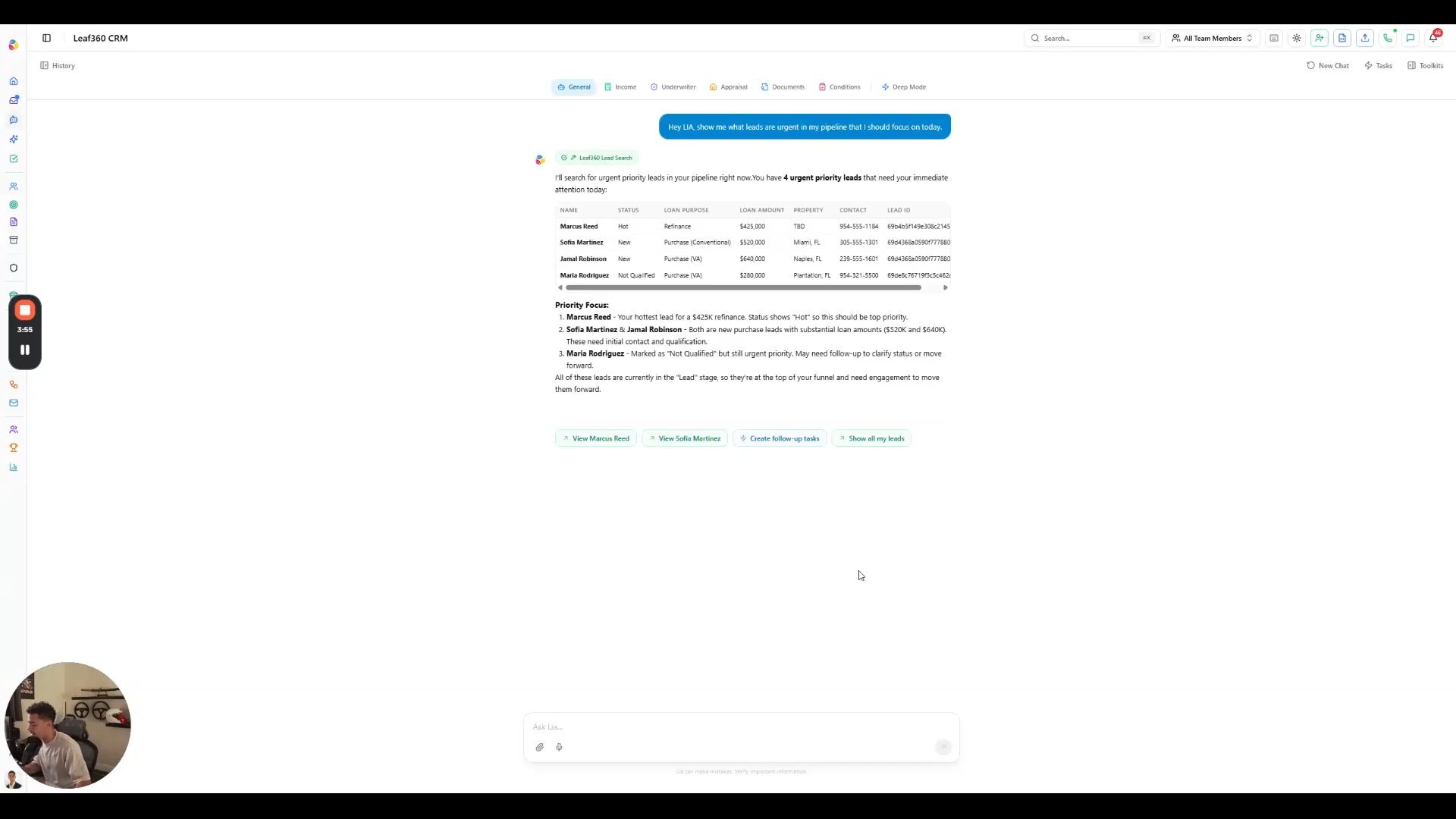
Lia's urgent leads results, with a priority summary underneath
Lia reuses record IDs from earlier in the same conversation. If you leave and come back, reopen the thread from History rather than starting a new chat, or she will need to search again.
Analyzing a pay stub for qualifying income
The second demo switches to a fresh chat for Income mode:1
Ask Lia to analyze a pay stub
Something like “Help me analyze a pay stub to determine qualifying monthly income” is enough. Lia asks you to attach the pay stub and any other key information she needs.
2
Attach the document and wait for it to finish indexing
Drop the file in or use the paperclip. Let the chip reach Ready before you send your message, it makes the analysis faster.
3
Review the calculation
Lia calculates the qualifying income, states which guideline she used, and gives a conservative estimate you can rely on while documentation is still coming in.
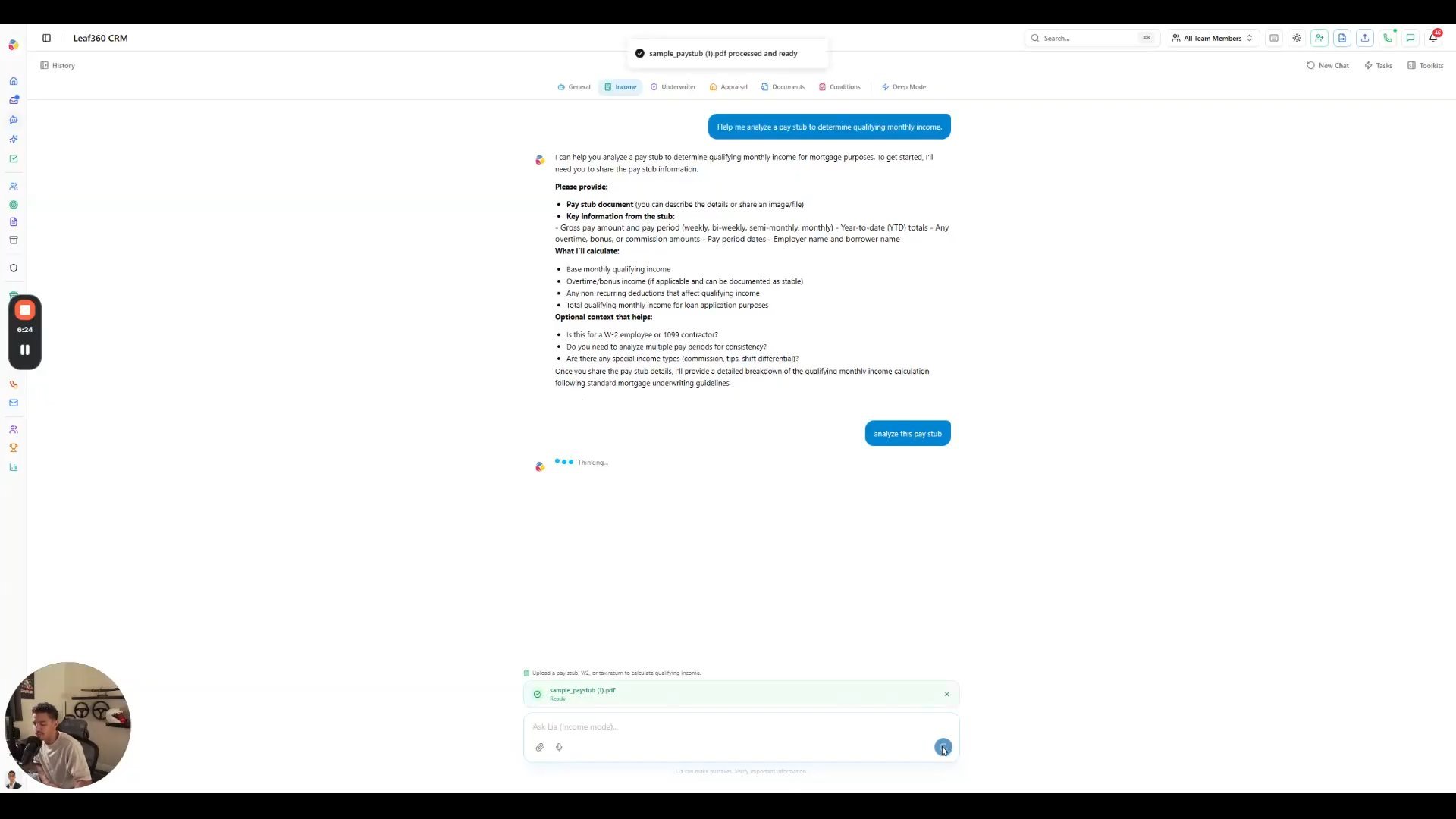
A pay stub attached and showing Ready, right before sending
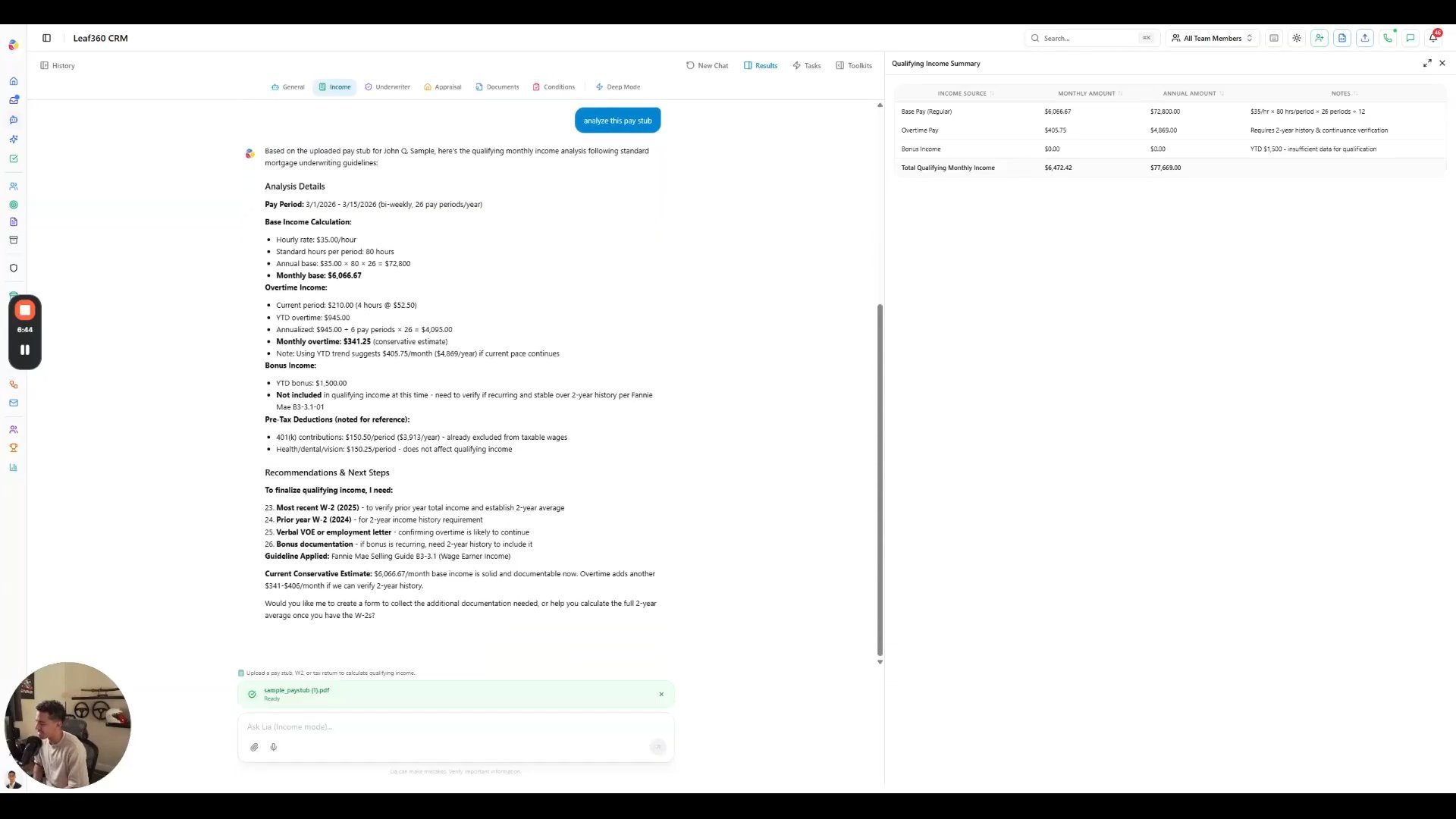
The Results panel with Lia's qualifying income summary and analysis details
Missing conditions and the collection email
Once the pay stub is analyzed, Lia doesn’t just stop at the number. She lists exactly what’s still missing to finalize the file, for example the most recent W2, a VOE or employment letter, and bonus documentation covering a two year history, and offers to draft a request. Ask her to draft the collection email and she writes one addressed to the borrower, referencing the specific documents she just identified. From there you can ask her to adjust the tone, add your contact information and phone number, include a deadline, or turn the list into a checklist attachment, all in the same conversation.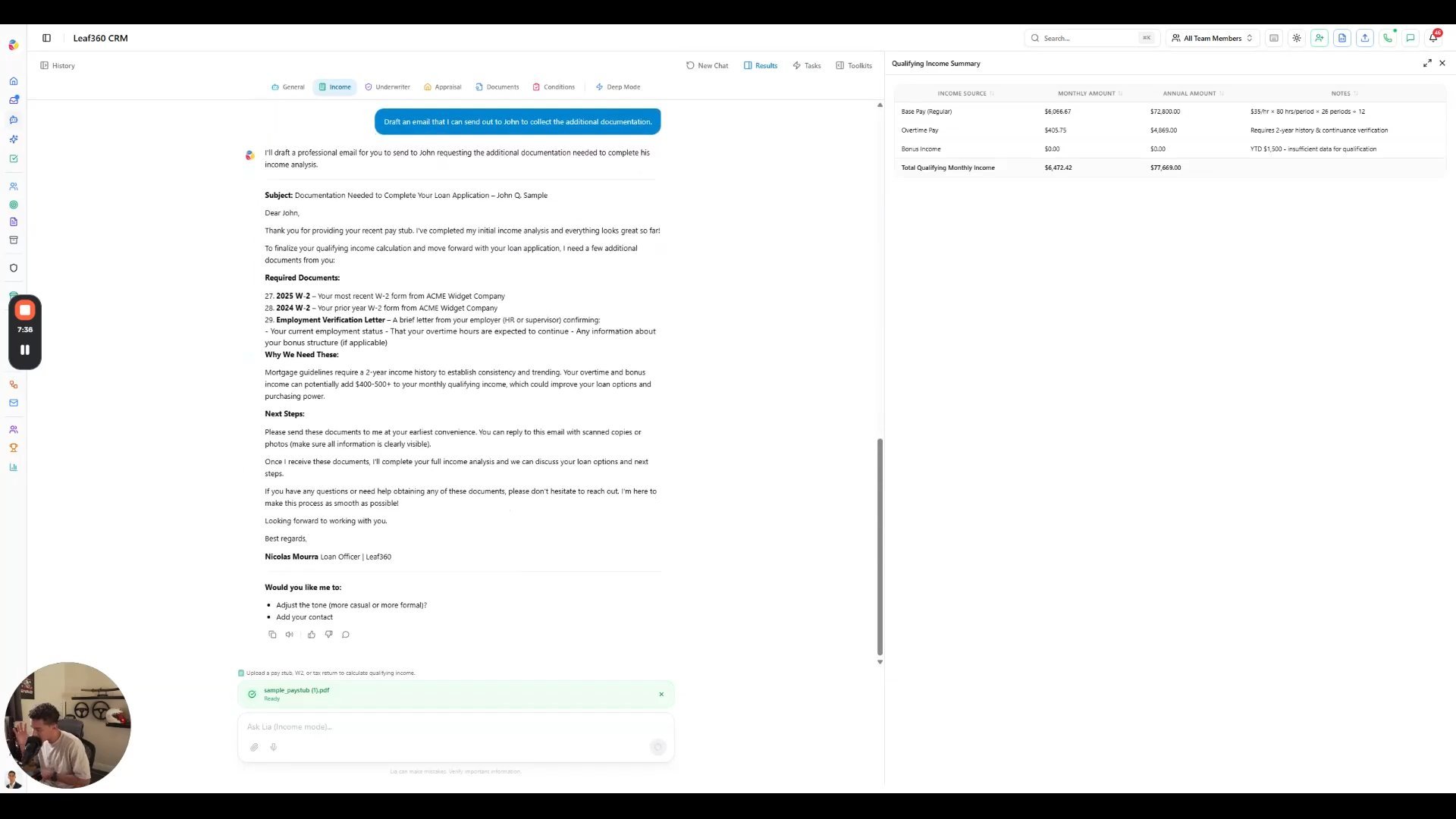
Lia's drafted collection email, listing required documents and next steps